Skip the research trap. Get your webcams in 60 seconds.
We scored 400+ webcams across 5 dimensions — answer 5 quick questions and we'll match you to YOUR best pick.

Powered by DecisionScore™
Each product is evaluated across 18 weighted criteria — covering performance, value, build quality, and real-world usability. Your quiz answers re-weight the criteria to match what matters most to you, so two people can get different #1 picks from the same data.
See the DecisionScore methodology →- Business‑focused 1080p webcam with 80° FOV
- Directional microphone reduces background noise
- Integrated privacy shutter and rugged design
Find your perfect webcams
5 quick questions. No quiz-takes-10-minutes trap. A personalized match from 37 scored picks — with clear reasoning for every recommendation.
What will you primarily use the webcam for?
Different webcams are optimised for specific tasks. Choose professional calls for business meetings, streaming for content creation, general use for casual chat, or group calls when you need to capture multiple people in a room.
- Professional calls benefit from reliable autofocus and clear microphones, while streamers may need 4K and higher frame rates.
- Group calls require a wider field of view—look for 90° or more to fit everyone in the frame.
- General use or family chats don’t require advanced features; a solid 1080p webcam is usually enough.
As an Amazon Associate and affiliate partner we earn from qualifying purchases. Links on this page may earn us a commission at no extra cost to you. Full disclosure
Not ready for the quiz? Here are our overall top picks
These are our top-rated picks overall. For a recommendation matched to YOUR specific needs,
Poly Studio P5 Professional Webcam (Plantronics) - 1080p HD Laptop Camera for
Business‑focused 1080p webcam with 80° FOV
View Today's Price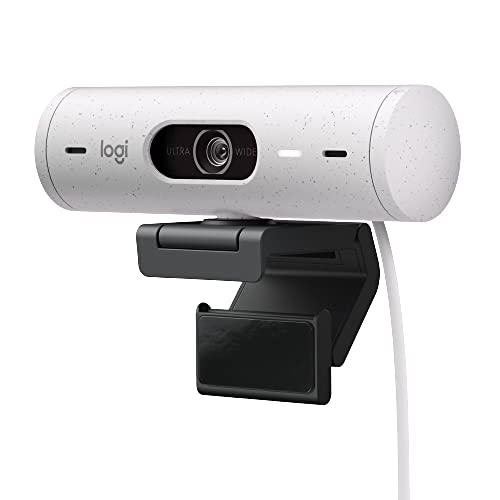
Logitech Brio 500 Full HD Webcam with Auto Light Correction,Show Mode, Dual
1080p camera with Logitech RightLight 4 auto light correction
View Today's Price
Dell WB5023 Webcam - 60 fps - USB 2.0 Type A
2K QHD resolution with HDR for balanced exposure
View Today's PriceHow to Choose the Right Webcams
Choosing the right webcam depends on your primary use, video quality needs, lighting conditions, and feature preferences—trade-offs that shift based on your setup and budget. A feature like 4K or AI tracking is perfect for streaming but unnecessary for basic calls, while field of view and low-light performance interact with your room and group size. Generic top-10 lists miss these nuances. Our recommendation engine evaluates your specific needs across five key dimensions and matches you to the right webcam in under 60 seconds.
About this guide
Webcams
Why Webcam Shopping Is Trickier Than It Looks
The webcams market in 2026 is a minefield of confusing specs, misleading marketing, and real trade-offs that most buyers miss. Deciding between 1080p, 2K, and 4K webcams isn’t just about sharpness—platforms like Zoom and Teams often cap at 1080p, so paying extra for a 4K webcam may only matter if you’re streaming or cropping your video. Frame rate is another overlooked detail: 30fps is standard for most webcams, but 60fps is only useful for content creators or gamers. Low-light performance is where cheap webcams fall apart—sub-$30 webcams deliver grainy, washed-out images, while premium webcams like the Logitech Brio 4K use HDR and larger sensors to keep you looking crisp at night. Field of view is a classic trap: a 70° lens is perfect for solo calls, but ultra-wide 120° webcams distort faces and are overkill unless you’re running group meetings. Most buyers get tripped up by flashy webcam features like AI tracking or built-in lighting, not realizing that software compatibility and mounting stability often matter more for webcams. Price tiers are real: $30-70 for basic 1080p webcams, $80-120 for business-grade webcams, and $150+ for 4K or AI extras.
What Actually Sets Webcams Apart in 2026
The real differentiators between webcams aren’t always what the box advertises. Logitech’s C920s HD Pro remains the gold standard under $100, thanks to its reliable autofocus, 78° field of view, and plug-and-play setup that outshines many other webcams. If you need a wider shot for group calls, the Logitech C930e’s 90° lens is a smarter pick than any ultra-wide 120° webcams, which tend to produce awkward distortion. Skip 4K webcams unless you’re streaming or need flawless low-light performance—Logitech Brio 4K and Dell UltraSharp WB7022 webcams deliver, but most calls won’t use that resolution. NexiGo and OBSBOT offer budget 4K webcams, but their software is less stable and AI features lag in real calls. Prioritize sensor size and HDR in webcams over pure megapixels for low-light clarity. Built-in mics on webcams are rarely good enough for noisy rooms; external microphones are a must for professional audio. Mounting is another dealbreaker: many webcam clips wobble on curved monitors, so check compatibility or invest in a tripod mount for your webcams. Firmware reliability and software support—especially on Mac and Windows 11—are more important for webcams than most buyers realize.
How to Balance Specs, Use Case, and Budget
Choosing the right webcams means juggling your actual use case, lighting conditions, and how much you’re willing to spend. If you’re mostly on solo video calls, a 1080p webcam like the Logitech C920s or NexiGo N60 covers 90% of needs without the file size or heat issues of 4K webcams. For group meetings, a 90° field of view is ideal—wider webcams aren’t always better. Streamers and creators should consider 4K webcams and AI features, but only if they have the bandwidth and hardware to support them. Low-light performance is crucial if you work late or in dim rooms; look for HDR and larger sensors in webcams, not just higher resolution. Your budget sets real limits: under $70 gets you solid basic webcams, $80-120 brings business reliability, and $150+ unlocks premium webcams with advanced features. Our quiz weighs these factors—primary use, sharpness, field of view, lighting, and AI features—to match you with webcams that actually fit your situation. Don’t let flashy marketing or a long spec sheet distract you from what matters for your webcams setup.
Buyer's guide
How to choose
1Core Performance Criteria
- Always choose at least 1080p resolution for video calls—720p webcams are outdated and produce noticeably softer images, even on small screens.
- Frame rate matters for motion: 30fps is fine for calls, but 60fps is only necessary for streamers or gamers who want ultra-smooth video.
- Field of view impacts framing; 78–90° is optimal for most users, while ultra-wide 120° lenses distort faces and are best reserved for conference rooms.
- Autofocus is essential for staying sharp if you move around; fixed-focus webcams like the NexiGo N60 are only suitable for static setups.
- Low-light performance depends on sensor size and HDR, not just resolution—Logitech Brio 4K and Dell UltraSharp WB7022 excel here with larger sensors.
- Built-in microphones are rarely sufficient for noisy environments; for professional calls, pair your webcam with a dedicated USB microphone.
2Build Quality and Durability
- Logitech models like the C920s and C930e have a reputation for sturdy build and reliable mounting, even after years of daily use.
- Avoid sub-$30 webcams, as flimsy plastic housings and weak hinges lead to mounting failures and wobbly video within months.
- Check the monitor clip’s compatibility—many clips don’t grip curved or ultra-thin bezels securely, causing the camera to tilt or fall.
- Premium models such as the Logitech Brio 4K and Dell UltraSharp WB7022 use reinforced hinges and higher-quality plastics for long-term durability.
- Firmware reliability is a hidden quality marker; frequent update failures or bricking issues are more common with budget brands and off-label imports.
- Tripod mounts add stability and flexibility—invest in a model with a standard 1/4" thread if you want to avoid clip-related headaches.
3Value Analysis and Price Tiers
- The $50–90 range is the sweet spot for 1080p webcams like the Logitech C920s, offering 90% of premium performance at a fraction of the price.
- Budget 1080p models under $40, such as the NexiGo N60, are decent for casual use but often cut corners on sensor quality and mounting.
- Mid-range webcams ($80–120) like the Logitech C930e provide business-grade features, wider FOV, and better build quality for frequent professional use.
- Premium 4K models ($150+) like the Logitech Brio or Dell UltraSharp WB7022 offer HDR, AI features, and superior low-light, but are overkill for most calls.
- Avoid ultra-cheap models under $30; poor sensors and unreliable firmware make them a false economy, leading to frustration and quick replacements.
- AI features and 4K resolution command a price premium, but only pay for them if your platform and hardware can actually take advantage.
4Use-Case Fit and Real-World Scenarios
- Solo professionals should prioritize 1080p, autofocus, and a 78–90° FOV for flattering, focused framing in calls and interviews.
- Group calls or conference rooms benefit from a 90° or wider lens, but ultra-wide 120° is only useful if you routinely have multiple people on camera.
- Streamers and content creators need 4K or 60fps only if their platform supports it; otherwise, 1080p with good lighting is more important.
- If you work in dim or variable lighting, prioritize webcams with HDR and larger sensors—Logitech Brio 4K and Dell UltraSharp WB7022 are standouts.
- Business users should check compatibility with Zoom, Teams, and Mac/Windows 11, as some webcams require driver tweaks or have software conflicts.
- For travel or hybrid work, choose a model with a privacy shutter and compact design, such as the Logitech C920s or NexiGo N60.
5Common Mistakes and Buyer Pitfalls
- Don’t assume 4K is always better—most video call platforms downscale to 1080p, so you may never use the extra pixels.
- Buying for AI features like auto-framing or gesture control often leads to disappointment, as these can lag or drain system resources.
- Ignoring USB port requirements is a classic error; many 4K webcams need USB 3.0 for full frame rates—USB 2.0 halves performance.
- Overlooking mounting compatibility results in wobbly video or constant camera adjustments, especially on thin or curved monitors.
- Relying on built-in mics for group calls is a mistake—audio quality is usually poor, and background noise is amplified.
- Neglecting firmware updates or buying models with poor software support can result in bricked devices or persistent bugs.
6Maintenance, Updates, and Longevity
- Download the latest firmware from the manufacturer’s site before first use; factory firmware often has bugs or compatibility issues.
- Clean the lens regularly with a microfiber cloth to prevent image blur from dust or fingerprints, especially on models without a privacy shutter.
- Check for software updates every few months, as brands like Logitech and Dell release patches for compatibility and security.
- Avoid leaving webcams plugged in 24/7 if you use 4K modes—overheating can reduce lifespan, especially on models like the Logitech Brio.
- Store your webcam in a protective pouch when traveling to prevent scratches or damage to the lens and mounting hardware.
- If you experience firmware failures, consult the brand’s support forums for rollback instructions—some models lack easy recovery options.
FAQ
Frequently asked questions
Is 4K resolution worth paying extra for in a webcam?
For most users, 4K webcams are not worth the premium in 2026. Video call platforms like Zoom and Teams cap streams at 1080p, so you won’t see the extra sharpness. 4K is only valuable for content creators who crop or stream at high resolutions, or if you need the best low-light performance—Logitech Brio 4K and Dell UltraSharp WB7022 excel here. Otherwise, a high-quality 1080p webcam will deliver nearly identical results for less money.
How does the Logitech C920s compare to the Logitech Brio 4K?
The Logitech C920s is the best value for most users, offering sharp 1080p video, reliable autofocus, and a natural 78° field of view—ideal for solo calls. The Brio 4K costs more but adds 4K resolution, HDR, and superior low-light performance. However, unless you’re streaming or need advanced features, the C920s covers 90% of use cases at a much lower price. Both are plug-and-play, but Brio’s software is more demanding.
What field of view do I need for group video calls?
For group video calls, choose a webcam with at least a 90° field of view, such as the Logitech C930e. This captures multiple people without awkward cropping. Avoid ultra-wide 120° lenses unless you need to cover a large room, as they can distort faces and make the scene look unnatural. For solo use, a 70–78° FOV is more flattering and keeps the focus on you.
Are budget webcams like the NexiGo N60 good enough for daily use?
The NexiGo N60 and similar budget 1080p webcams are surprisingly capable for basic video calls and casual use. They offer decent image quality and a privacy shutter, but lack advanced autofocus and struggle in low-light conditions. For daily professional meetings or streaming, upgrading to a mid-range model like the Logitech C920s is worth the investment for better clarity and reliability.
Do AI features like auto-framing and gesture control really help?
AI features such as auto-framing and gesture control sound appealing but are often inconsistent in real-world use. On models like the Dell UltraSharp WB7022, auto-framing works well for dynamic group settings, but most AI features lag behind manual adjustment and can drain CPU resources. Unless you regularly move around or present to groups, these extras are rarely essential.
How important is low-light performance, and which brands do it best?
Low-light performance is crucial if you work in dim rooms or at night. Premium webcams with larger sensors and HDR, like the Logitech Brio 4K and Dell UltraSharp WB7022, deliver clear, vibrant images even in poor lighting. Budget models often produce grainy, washed-out video. If lighting is unpredictable in your space, invest in a camera known for strong low-light capability.
What are the most common webcam compatibility issues?
The most frequent compatibility issues involve software conflicts on Mac and Windows 11, especially with bundled apps like Logitech Capture. Some 4K webcams require USB 3.0 for full performance—using USB 2.0 halves frame rates. Firmware update failures can brick devices, so always check for updates from the manufacturer’s website before installing. For business use, verify compatibility with Zoom, Teams, and your operating system.
Best Webcams By Category
Related Guides
3D Printers
Matched to your print size, detail needs, materials, and how much you want to tinker or automate.
All-in-One Laser Printers for Home Office
Matched to your print volume, color needs, workflow features, and budget—get the right laser all-in-one for your home office.
Sit-Stand Desk Converters
Matched to your desk size, equipment weight, ergonomics, and feature preferences—get the right converter for your workflow.
Budget and Mid‑Range Laptops
Matched to your main tasks, OS preference, portability, and display—find a laptop that fits your real workflow and budget.
Color Laser Printers
Matched to your print volume, connectivity, and cost priorities—find the color laser printer that fits your workflow and space.