Skip the research trap. Get your nas storage devices in 60 seconds.
We scored 250+ nas storage devices across 5 dimensions — answer 5 quick questions and we'll match you to YOUR best pick.
Powered by DecisionScore™
Each product is evaluated across 18 weighted criteria — covering performance, value, build quality, and real-world usability. Your quiz answers re-weight the criteria to match what matters most to you, so two people can get different #1 picks from the same data.
See the DecisionScore methodology →- 2‑bay design with ARM Cortex-A55 processor and 2 GB RAM
- Supports 1 GbE networking and 0 NVMe slots for SSD caching
- Simple backup and file‑sharing functionality
Find your perfect nas storage devices
5 quick questions. No quiz-takes-10-minutes trap. A personalized match from 25 scored picks — with clear reasoning for every recommendation.
What will you primarily use your NAS for?
Different workloads place different demands on a NAS. Basic backups need modest specs, media streaming benefits from transcoding and HDMI, virtualization needs more CPU and RAM, and portable use calls for battery‑powered enclosures.
- If you only need backups, a basic 2-bay NAS is usually enough.
- Media streaming and Plex require hardware transcoding and more RAM.
- Virtualization or editing needs a powerful CPU and at least 4GB RAM.
As an Amazon Associate and affiliate partner we earn from qualifying purchases. Links on this page may earn us a commission at no extra cost to you. Full disclosure
Not ready for the quiz? Here are our overall top picks
These are our top-rated picks overall. For a recommendation matched to YOUR specific needs,
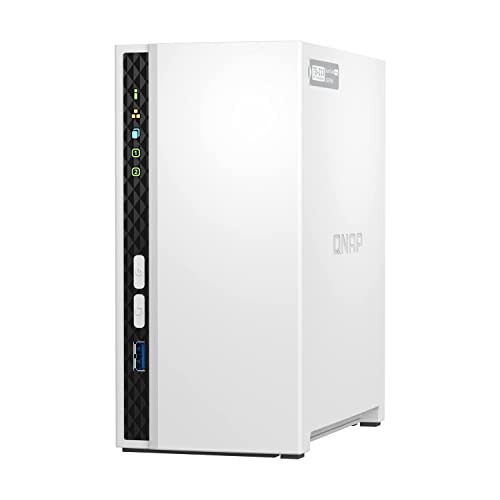
QNAP TS-233-US 2 Bay Affordable Desktop NAS with ARM Cortex-A55 Quad-core
2‑bay design with ARM Cortex-A55 processor and 2 GB RAM
View Today's Price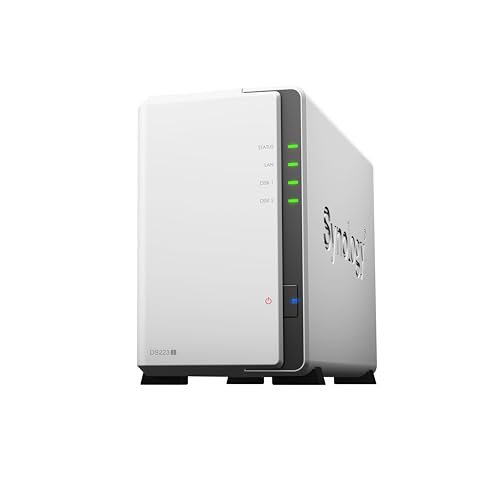
Synology 2-Bay DiskStation DS223j (Diskless)
2‑bay design with Realtek RTD1619 processor and 2 GB RAM
View Today's Price
Synology DS225+ Private Cloud Media Server - Stream, Back Up Photos & Share
2‑bay design with Intel Celeron J4125 processor and 2 GB RAM
View Today's PriceHow to Choose the Right NAS Storage Devices
Choosing the right NAS storage device depends on your primary workload, future expansion plans, network speed, and software needs—trade-offs that shift based on your environment and growth expectations. Generic top-10 lists can’t account for how these factors interact: a feature that’s perfect for media streaming could be a waste for backups. Our recommendation engine evaluates your specific requirements across five dimensions and matches you to the right NAS in under 60 seconds.
About this guide
NAS Storage Devices
Why NAS Buying Is Trickier Than It Looks
Picking the right NAS storage device in 2026 is a balancing act between specs, price, and future-proofing. Many buyers gravitate toward whatever two-bay NAS storage enclosure is on sale, only to discover they quickly outgrow its capacity—2-bay NAS storage units are great for basic backups but max out fast if your media library expands. Step up to a 4-bay or 8-bay NAS storage system and you’ll pay $500–$1,200, but that doesn’t guarantee faster speeds or better features. Some NAS storage models, like those from Synology or QNAP, offer NVMe caching and multiple 2.5 GbE ports, but at the cost of more noise, heat, and complexity. Others, such as UGREEN or Minisforum, promise aggressive pricing but may lack mature NAS storage software or essential features like snapshot support. A common pitfall: assuming all NAS storage devices offer the same functionality—many skip vital features like end-to-end encryption or easy remote access. Performance bottlenecks can also lurk in unexpected places; even an eight-bay NAS storage device might ship with only 1 GbE networking unless you budget extra for add-on cards. Most NAS storage buyers underestimate how quickly their needs evolve and over-prioritize price over expandability or software polish.
What Actually Sets NAS Devices Apart
The real differentiators among NAS storage devices are processor power, drive bay scalability, networking options, and—most overlooked—software ecosystem. Synology’s DSM is the gold standard for NAS storage backup, snapshots, and media apps, while QNAP’s QTS appeals to power users with its vast app catalog and HDMI outputs for direct media playback. TerraMaster, UGREEN, and Asustor offer strong NAS storage hardware value, but their OSes may lack polish or third-party app support. Skip NVMe caching unless you’re running heavy NAS storage workloads or need fast virtualization; it adds cost and complexity without much benefit for simple NAS storage backups. Don’t get distracted by the highest bay count—if your NAS storage only has 1 GbE ports, you’ll bottleneck transfers no matter how many drives you add. Multi-gig (2.5 GbE) or PCIe expansion for 10 GbE is a must for creative NAS storage workflows or multi-user environments. Portable NAS storage units are a niche for photographers—great for on-location card off-loading but not a substitute for a real multi-bay NAS storage solution. Bottom line: prioritize NAS storage software reliability and network speed over raw drive count or flashy hardware specs.
How to Choose: Matching Specs to Your Real-World Needs
Drive bay count, CPU, and network speed interact in ways that catch NAS storage buyers off guard. For example, a 4-bay NAS storage device with only 1 GbE ports will never saturate its drives, while a 2-bay NAS storage unit with 2.5 GbE and NVMe caching can outperform larger, older NAS storage models for media streaming. Your environment matters: home users want quiet, energy-efficient NAS storage units, while small businesses need robust NAS storage expansion and virtualization support. Budget is a hard constraint—sub-$300 NAS storage options like UGREEN’s DH2300 are tempting, but you’ll sacrifice app support or future upgradability. The quiz below evaluates your primary NAS storage use, expansion plans, network requirements, must-have features, and working environment to cut through the noise. For most, the smartest move is to buy NAS storage for your next three years, not just today’s needs. Consider how your NAS storage backup, streaming, or editing workloads might grow, and don’t underestimate the value of reliable NAS storage software updates and support. If you’re unsure, prioritize proven NAS storage brands like Synology or QNAP for their software polish and community support, even if the NAS storage hardware specs look similar elsewhere.
Buyer's guide
How to choose
1Core Performance Criteria
- Choose a NAS with at least a quad-core processor and 2GB RAM for smooth file sharing, especially if you want media streaming or virtualization.
- 1 GbE networking limits real-world transfer speeds to about 110 MB/s; look for 2.5 GbE or PCIe expansion for faster workflows.
- NVMe caching boosts performance for heavy workloads but is overkill for basic backups or simple media streaming tasks.
- Transcoding support is essential for Plex or 4K streaming—Synology and QNAP midrange models excel here, while budget options often lack hardware acceleration.
- Entry-level models like UGREEN’s DH2300 are fine for backups, but struggle with simultaneous multi-user access or advanced apps.
- If you plan to run Docker, VMs, or business apps, prioritize NAS units with at least 4GB RAM and a modern CPU, such as the Synology DS1621+.
2Build Quality and Durability
- Metal chassis and quality fans, as seen in Asustor and Synology, run quieter and last longer than plastic-heavy budget NAS enclosures.
- Hot-swappable drive bays simplify maintenance and upgrades—skip models without this if uptime matters to you.
- Look for NAS devices with vibration-dampening mounts, which reduce drive wear and noise in multi-bay setups.
- TerraMaster and QNAP units often feature robust build quality, but some UGREEN and Minisforum models cut corners on cooling or power supplies.
- Check for dust filters or easy-access panels—these features make a real difference in longevity and daily usability.
- A three-year warranty is standard on reputable brands; avoid units with only one year of coverage or unclear support policies.
3Value Analysis and Price Tiers
- Sub-$300 NAS models like UGREEN DH2300 offer good entry-level value but lack advanced features and future expansion options.
- Expect to pay $500–$800 for a 4-bay NAS with multi-gig networking, NVMe slots, and reliable software from Synology or QNAP.
- Don’t be lured by high bay count at low prices—often these units cut corners on CPU, RAM, or networking speed.
- Factor in the cost of NAS-rated drives (e.g., WD Red Plus, Seagate IronWolf), which can double your total investment.
- Software polish and app support, especially from Synology DSM, justify a premium over hardware-only competitors.
- PCIe expansion slots add long-term value, letting you upgrade to 10 GbE or add SSD caching as your needs grow.
4Use-Case Fit and Application Scenarios
- For pure backups and file sharing, a 2-bay NAS with 1 GbE is sufficient, but you’ll quickly outgrow it for media streaming.
- Media streaming and Plex users need hardware transcoding—prioritize models with Intel or AMD CPUs and at least 2GB RAM.
- Creative pros and editors should seek 4+ bays, NVMe caching, and multi-gig networking to support high-speed 4K or 8K workflows.
- Virtualization or Docker workloads require at least 4GB RAM and a modern CPU; QNAP and Synology midrange models are best here.
- Photographers on the go benefit from portable NAS units with card readers, but these aren’t substitutes for robust desktop NAS systems.
- Small business users should focus on expandability, RAID options, and strong backup software—Synology’s DSM leads for this use case.
5Common Mistakes and Pitfalls
- Underestimating future storage needs—always buy at least one bay more than you think you’ll need for the next three years.
- Assuming all NAS devices have the same software—UGREEN and Minisforum may lack features found in Synology or QNAP.
- Ignoring network speed—don’t buy an 8-bay NAS with only 1 GbE ports if you plan to edit video or serve multiple users.
- Skipping NAS-rated drives—desktop HDDs fail faster in 24/7 NAS use; invest in WD Red Plus or Seagate IronWolf.
- Overpaying for features you won’t use—NVMe caching and 10 GbE are wasted on simple backup duties.
- Neglecting warranty and support—budget brands often offer limited coverage, which can be a headache if hardware fails.
6Maintenance and Longevity
- Regularly update NAS firmware and apps—Synology and QNAP provide frequent security patches, while lesser-known brands may lag behind.
- Replace fans and power supplies proactively every 3–5 years to avoid sudden failures, especially in multi-bay or rackmount units.
- Monitor drive health using built-in SMART tools; swap out drives at the first sign of errors to prevent data loss.
- Use UPS battery backup to protect against power outages—unexpected shutdowns are a leading cause of NAS data corruption.
- Clean dust filters and vents quarterly; overheating shortens drive and component lifespan, especially in compact enclosures.
- Schedule regular backups to external drives or cloud—RAID is not a substitute for a real backup strategy.
FAQ
Frequently asked questions
Is NVMe caching worth paying extra for in a NAS?
NVMe caching is only worth the investment if you run heavy workloads like video editing, virtualization, or multi-user environments. For basic backups or media streaming, the performance boost is minimal and doesn’t justify the extra cost or complexity. If you’re considering a Synology or QNAP with NVMe slots, make sure your workflow actually benefits from faster random access. Otherwise, allocate your budget toward more RAM or multi-gig networking instead.
How does Synology compare to QNAP for home users?
Synology is widely praised for its DSM software, which offers intuitive backup, snapshot, and media apps—ideal for home users prioritizing ease of use and reliability. QNAP, on the other hand, appeals to power users and tinkerers with a vast app catalog, HDMI outputs, and more hardware customization. For most home users, Synology is the safer bet for long-term support and a user-friendly experience, while QNAP is better if you want advanced features or direct media playback.
What specifications do I need for Plex media streaming?
For smooth Plex media streaming, look for a NAS with hardware transcoding support (typically Intel or AMD CPUs), at least 2GB RAM, and multi-gig (2.5 GbE) networking if streaming 4K content. Synology and QNAP midrange models are strong choices. Avoid entry-level ARM-based units for transcoding—they struggle with high-bitrate or multiple simultaneous streams. If you plan to stream outside your home, prioritize models with robust remote access and security features.
Are UGREEN and Minisforum NAS devices reliable for long-term use?
UGREEN and Minisforum offer compelling hardware at aggressive prices, but their software ecosystems aren’t as mature as Synology or QNAP. You may miss out on features like snapshot support, seamless cloud sync, or frequent firmware updates. For basic backups or light file sharing, they’re solid budget picks, but for mission-critical or business use, stick with brands known for long-term support and robust software updates.
How much should I budget for drives when buying a NAS?
NAS-rated drives like WD Red Plus or Seagate IronWolf typically cost $90–$180 per 4TB–8TB drive in 2026. For a 4-bay NAS, expect to spend as much or more on drives as on the enclosure itself. Don’t cut corners—desktop drives wear out quickly in 24/7 operation. Factor in the total cost of ownership, including spare drives for RAID arrays and possible future expansion.
What’s the advantage of PCIe expansion in NAS devices?
PCIe expansion slots let you add faster networking (10 GbE), SSD caching, or even GPU acceleration for specialized workloads. This is a must-have for creative studios, video editors, or anyone expecting their storage needs to grow. Synology’s DS1621+ and QNAP’s TVS-h674-i3 are examples of models with PCIe slots. If you buy a NAS without expansion, you may end up replacing the entire unit sooner than expected.
Can I use a NAS for both backups and virtualization?
Yes, but you’ll need a NAS with a modern multi-core CPU, at least 4GB RAM (preferably upgradable), and support for virtualization platforms like Docker or Virtual Machine Manager. Synology and QNAP midrange or higher-end models are best suited for this dual role. Avoid entry-level or ARM-based units—they lack the processing power for stable VM performance alongside regular backup duties.
Best NAS Storage Devices By Category
Related Guides
3D Printers
Matched to your print size, detail needs, materials, and how much you want to tinker or automate.
All-in-One Laser Printers for Home Office
Matched to your print volume, color needs, workflow features, and budget—get the right laser all-in-one for your home office.
Sit-Stand Desk Converters
Matched to your desk size, equipment weight, ergonomics, and feature preferences—get the right converter for your workflow.
Budget and Mid‑Range Laptops
Matched to your main tasks, OS preference, portability, and display—find a laptop that fits your real workflow and budget.
Color Laser Printers
Matched to your print volume, connectivity, and cost priorities—find the color laser printer that fits your workflow and space.