Skip the research trap. Get your budget and mid‑range laptops in 60 seconds.
We scored 400+ budget and mid‑range laptops across 5 dimensions — answer 5 quick questions and we'll match you to YOUR best pick.

Powered by DecisionScore™
Each product is evaluated across 18 weighted criteria — covering performance, value, build quality, and real-world usability. Your quiz answers re-weight the criteria to match what matters most to you, so two people can get different #1 picks from the same data.
See the DecisionScore methodology →- 15.6-inch FHD display with BlueLightShield
- AMD Ryzen 5 7520U processor and Radeon 610M graphics
- 8GB LPDDR5 RAM and 512GB SSD
Find your perfect budget and mid‑range laptops
5 quick questions. No quiz-takes-10-minutes trap. A personalized match from 38 scored picks — with clear reasoning for every recommendation.
What will you mainly do with your laptop?
If you mostly browse the web, stream media and handle office documents, choose Everyday. Portable covers students and commuters who prize light weight and long battery life. Gaming/Performance suits people playing modern titles or running intensive software. Creative Work includes video editing, photo editing and software that needs a colour‑accurate display.
- If you mostly browse, stream, or use office apps, 'Everyday' is plenty—no need to pay for extra graphics or CPU.
- Gamers and creative pros should select those options to get matched with higher RAM, better screens, and faster processors.
- If you’re always on the move, 'Portable & on-the-go' ensures you see only lightweight, long-battery models.
As an Amazon Associate and affiliate partner we earn from qualifying purchases. Links on this page may earn us a commission at no extra cost to you. Full disclosure
Not ready for the quiz? Here are our overall top picks
These are our top-rated picks overall. For a recommendation matched to YOUR specific needs,
acer Aspire 3 A315-24P-R7VH Slim Laptop | 15.6" Full HD | AMD Ryzen 3 7320U
15.6-inch FHD display with BlueLightShield
View Today's Price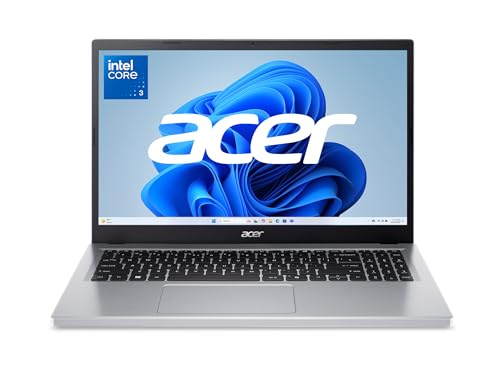
acer Aspire Go 15 AI Ready Laptop | 15.6" FHD (1920 x 1080) IPS Display | Intel
15.6-inch 1080p display with anti‑glare coating
View Today's Price
ASUS Vivobook 16 AI Powered Laptop 16.0" IPS WUXGA Display (AMD Ryzen AI 5 330,
Check today’s price →16-inch FHD display with thin bezels and 60Hz refresh
View Today's PriceHow to Choose the Right Budget and Mid‑Range Laptops
Choosing the right budget or mid-range laptop depends on how your main tasks, preferred operating system, portability needs, and display priorities interact—these trade-offs shift based on your workflow, budget, and daily habits. A feature that’s perfect for students (like all-day battery) might be wrong for a gamer or creative pro who needs more power or a vivid screen. Our recommendation engine evaluates your specific needs across five dimensions and matches you to the right laptop in under 60 seconds.
About this guide
Budget and Mid‑Range Laptops
Why Budget Laptop Shopping Is So Tricky in 2026
Landing the right budget laptop or mid-range option in 2026 is far from straightforward. The latest processors—Intel’s 14th‑Gen Core Ultra, AMD’s Zen 4, Apple’s M‑series, and ARM-based Snapdragon X—have made performance gaps between $300 budget laptops like Chromebooks and $800 Windows machines almost invisible for everyday tasks. Entry-level budget laptops such as the Acer Aspire Go 15 now feel fast for web and office work, but step up to a Lenovo IdeaPad Slim 3x or Apple MacBook Neo and you get 16GB RAM, 16+ hour battery life, and a premium chassis for $450–$600. Yet, most budget laptop buyers get tripped up by confusing model numbers, misleading “gaming” claims, and specs that sound better than they are—like 8GB RAM (which bottlenecks multitasking) or “Full HD” screens that look washed out in person. Many shoppers overpay for features they won’t use on budget laptops, or under-budget and end up with a sluggish machine. Price tiers matter: under $300 for budget laptops means real compromises, while $450–$700 is the sweet spot for performance and build quality. Ignore this, and you risk buying the wrong budget laptop for your needs.
What Actually Sets Laptops Apart: Specs That Matter
Not all budget laptops are created equal, and the real differences go deeper than brand logos or processor names. In 2026, 16GB RAM is the single biggest upgrade—skip 8GB budget laptops unless you only browse and stream. ARM-based chips like Snapdragon X and Apple’s A18 Pro now outlast and often outperform older Intel and AMD CPUs for battery life and everyday speed, but Windows budget laptops like the Dell Inspiron 14 Plus still offer better port selection and upgradability. Display quality is a make-or-break: many sub-$600 budget laptops use dim, washed-out panels (often under 300 nits), so always check in person if you can. Don’t get distracted by “gaming” branding—budget laptops with entry-level GPUs are only good for casual play, and you’ll get more real-world value from a solid NPU for AI tasks or a high-refresh (120Hz+) screen if you care about smoothness. Skip OLED on budget laptops unless you’re a creative pro; it rarely appears under $700. Bottom line: prioritize RAM, battery, and display on budget laptops over raw CPU speed or marketing hype.
How to Decide: Matching Features to Your Real Use
The right budget laptop depends on how your needs, preferences, and budget interact. For students or commuters, portability and battery life (13–14" screens, 2–3 lbs, 13+ hours) matter more than sheer power in budget laptops. If you need a workhorse for multitasking or light creative work, 16GB RAM and a 512GB SSD are non-negotiable on budget laptops, even if it means skipping flashy features. Gamers and creators must balance graphics power with thermals—most budget laptops throttle under load, so don’t expect miracles. Your operating system preference (Windows, macOS, ChromeOS) narrows your budget laptop options and affects app compatibility. The quiz below asks about your main tasks, OS, portability, form factor, and display priorities—each answer maps to real hardware traits and price bands for budget laptops. Remember: screen size affects battery and weight, while your budget limits which features are realistic on budget laptops. Always check for hidden trade-offs like slow USB ports or missing backlights on budget laptops. Use our quiz to shortcut the process, but focus on the specs that matter for your actual workflow with budget laptops.
Buyer's guide
How to choose
1Core Performance Criteria
- Prioritize 16GB RAM over a faster CPU, as 8GB variants often stutter with multiple browser tabs or productivity apps open.
- Snapdragon X and Apple A18 Pro chips deliver 13–29 hours of battery life, easily outlasting older Intel and AMD laptops in real-world use.
- A 512GB SSD is the practical minimum for storage—128GB fills up fast, and upgrades are often impossible on budget models.
- Integrated NPUs in ARM-based laptops boost AI features and video calls, but don’t expect strong gaming performance from these chips.
- Look for at least 300 nits brightness on displays; many sub-$500 laptops use panels that appear washed out in bright rooms.
- Avoid “gaming” branding on budget machines—dedicated GPUs in this range rarely handle modern titles smoothly and add weight or heat.
2Build Quality and Durability
- Aluminum chassis, like on the MacBook Neo, feel premium and resist flex better than most plastic-bodied Windows laptops under $700.
- Budget laptops often skip keyboard backlights and use spongy keys—test the keyboard in person if you type a lot for work or school.
- Hinges on Acer Aspire Go and similar models can loosen over time; mid-range picks like Dell Inspiron 14 Plus tend to last longer.
- Check for port durability—USB-C ports on cheap models may wobble after months of daily use, making charging unreliable.
- Screen wobble is common on lighter, ultra-thin laptops; if you plan to use your laptop on your lap, prioritize a sturdier hinge design.
- Warranty coverage varies: Lenovo and Dell often offer better support and accidental damage protection than lesser-known brands at similar prices.
3Value Analysis and Price Tiers
- The $450–$600 range is the current sweet spot for 16GB RAM, 512GB SSD, and 13+ hour battery—don’t expect these specs below $400.
- March and October are the best months for deals, with $200+ discounts on models like Asus Vivobook 14 and Dell Inspiron 15.
- Under $300, expect compromises: basic screens, 8GB RAM, and plastic builds—fine for web browsing, but not for multitasking or creative work.
- Chromebooks and MacBook Neo offer premium build at budget prices but may lack storage or ports compared to similarly priced Windows laptops.
- Paying $700+ rarely adds much unless you need OLED, dedicated graphics, or a 2-in-1 convertible for tablet use.
- Always factor in accessories—dongles, external drives, and sleeves can add $50–$150 to your real-world cost.
4Use-Case Fit and Workflow
- Students and commuters should prioritize lightweight models (2–3 lbs), long battery life, and comfortable keyboards for all-day note-taking.
- Remote workers benefit from better webcams and speakers—many budget laptops cut corners here, so check reviews for real-world audio and video quality.
- Creative users need vivid screens (high-gamut IPS or OLED) and at least 16GB RAM; avoid budget models with dim or inaccurate displays.
- Gamers should skip sub-$700 laptops unless only playing older or indie titles; integrated graphics struggle with modern games even at low settings.
- If you rely on USB-C charging or external monitors, verify port selection—many budget models lack Thunderbolt or have only one USB-C port.
- Travelers should look for models with robust build, spill-resistant keyboards, and at least 10 hours of battery to avoid constant charging.
5Common Mistakes and Pitfalls
- Many buyers underestimate how quickly 8GB RAM becomes a bottleneck, especially with Chrome, Zoom, or multiple apps running together.
- Assuming all “Full HD” displays are equal is a mistake—panel quality varies wildly, so always check for brightness and color accuracy.
- Ignoring storage needs leads to frustration—128GB SSDs fill up fast with system updates and cloud sync, leaving little room for files.
- Believing “gaming” labels on budget laptops sets unrealistic expectations; these machines rarely deliver playable frame rates on new games.
- Overlooking port selection can mean constant dongle use; check for USB-C charging, HDMI, and SD card slots if you need them.
- Buying outside major deal periods often means paying $100–$200 more for the same hardware—track seasonal sales if possible.
6Maintenance and Longevity
- Budget laptops with soldered RAM and storage are not upgradeable—choose models with accessible slots if you want to extend lifespan.
- Battery replacements are easier on Dell and Lenovo models; MacBook Neo and many ultrathins require professional service for battery swaps.
- Regularly update firmware and drivers—ARM-based laptops like Snapdragon X models see frequent performance and compatibility improvements via updates.
- Clean keyboards and vents monthly to avoid dust buildup, which can cause overheating and reduce performance over time.
- Invest in a padded sleeve or case, especially for thin aluminum models, to prevent dents and scratches during travel.
- Expect 3–5 years of reliable use from a $450–$600 laptop with 16GB RAM; cheaper models may slow down or fail sooner.
FAQ
Frequently asked questions
Is 16GB RAM worth paying extra for on a budget laptop?
Absolutely—16GB RAM makes a dramatic difference in multitasking, browser tab management, and future-proofing. Even with fast chips like Snapdragon X or Apple A18 Pro, 8GB models quickly bottleneck when running multiple apps, video calls, or heavy Chrome sessions. For $50–$100 more, you’ll get a laptop that feels fast for years, not just months. If you plan to keep your laptop for more than two years or use it for work or study, 16GB is the smart choice.
How does the Lenovo IdeaPad Slim 3x compare to the Dell Inspiron 14 Plus?
Both are top picks in the $500–$700 range for 2026, offering Snapdragon X chips, 16GB RAM, and strong battery life. The Lenovo IdeaPad Slim 3x stands out for its comfortable keyboard with numpad and slightly longer battery (16+ hours), while the Dell Inspiron 14 Plus edges ahead in build quality and port selection. If you need a better typing experience or a lighter chassis, Lenovo wins; for more ports and a sturdier feel, Dell is the better bet.
What display quality should I expect at different price points?
Under $300, expect basic TN or dim IPS panels—colors look washed out and brightness rarely exceeds 250 nits. In the $450–$600 range, you’ll find better IPS screens with 300+ nits and decent color, but few offer true high-gamut or OLED unless you spend $700 or more. Always check reviews or test in-store, as display quality varies even within the same brand. For creative work or outdoor use, prioritize brightness and color accuracy over resolution.
Are ARM-based laptops like Snapdragon X and Apple A18 Pro good for students?
Yes, ARM-based laptops such as those with Snapdragon X or Apple’s A18 Pro chips are excellent for students in 2026. They deliver outstanding battery life (13–29 hours), run cool and silent, and handle web, office, and video tasks with ease. However, check software compatibility—most mainstream apps work, but niche Windows programs or legacy software may have issues. For web-first workflows, they’re hard to beat in value and portability.
How much storage do I need for school or remote work?
For most students or remote workers, 512GB SSD is the minimum practical size in 2026. This allows for system updates, cloud sync, office files, and a modest media library without constant cleanup. 128GB or 256GB SSDs fill up quickly, especially with Windows updates or offline files. If you work with large media or need to store lots of photos, consider 1TB or plan for an external SSD like the Samsung T7.
Does the Apple MacBook Neo 13 have any major downsides compared to Windows models?
The MacBook Neo 13 offers stellar build quality, battery life, and performance for its $599 price, but it lacks a keyboard backlight and has fewer ports than similarly priced Windows laptops. Storage is capped at 512GB, and RAM upgrades aren’t possible. If you need legacy ports or want to connect multiple monitors without dongles, a Windows laptop like the Dell Inspiron 14 Plus may be more flexible. For macOS fans, it’s still a standout value.
What’s the best time of year to buy a budget laptop for maximum savings?
March and October are the best months for deals on budget laptops in 2026, especially right after major tech events like MWC. Retailers clear out older stock, dropping prices on models like Asus Vivobook 14 and Dell Inspiron by $150–$250. Avoid buying in late summer or right before back-to-school, when prices tend to spike. Track online deal sites and set alerts to catch short-lived discounts on top models.
Best Budget and Mid‑Range Laptops By Category
Related Guides
3D Printers
Matched to your print size, detail needs, materials, and how much you want to tinker or automate.
All-in-One Laser Printers for Home Office
Matched to your print volume, color needs, workflow features, and budget—get the right laser all-in-one for your home office.
Sit-Stand Desk Converters
Matched to your desk size, equipment weight, ergonomics, and feature preferences—get the right converter for your workflow.
Color Laser Printers
Matched to your print volume, connectivity, and cost priorities—find the color laser printer that fits your workflow and space.