Skip the research trap. Get your beginner compact keyboards in 60 seconds.
We scored 250+ beginner compact keyboards across 5 dimensions — answer 5 quick questions and we'll match you to YOUR best pick.

Powered by DecisionScore™
Each product is evaluated across 18 weighted criteria — covering performance, value, build quality, and real-world usability. Your quiz answers re-weight the criteria to match what matters most to you, so two people can get different #1 picks from the same data.
See the DecisionScore methodology →- 65% ultra-compact optical-mechanical keyboard
- 8000Hz polling rate for ultra-low latency
- Corsair OPX optical switches (linear, fast actuation)
Find your perfect beginner compact keyboards
5 quick questions. No quiz-takes-10-minutes trap. A personalized match from 25 scored picks — with clear reasoning for every recommendation.
What is your preferred keyboard size?
Keyboard size affects portability and desk space usage. Smaller sizes like 60% or 65% are more compact and portable, while TKL (Tenkeyless) offers more keys without a numpad, and 75% provides a balance with function keys.
- TKL (80%) is closest to a standard keyboard, minus the numpad—easy transition for most users.
- 75% saves space but still has arrows and F-keys—great for compact desks.
- 65% keeps arrows but drops the function row—best for small setups but requires learning some shortcuts.
As an Amazon Associate and affiliate partner we earn from qualifying purchases. Links on this page may earn us a commission at no extra cost to you. Full disclosure
Not ready for the quiz? Here are our overall top picks
These are our top-rated picks overall. For a recommendation matched to YOUR specific needs,
Corsair K65 Pro Mini 65% Optical-Mechanical Gaming Keyboard – 8000Hz Polling,
65% ultra-compact optical-mechanical keyboard
View Today's Price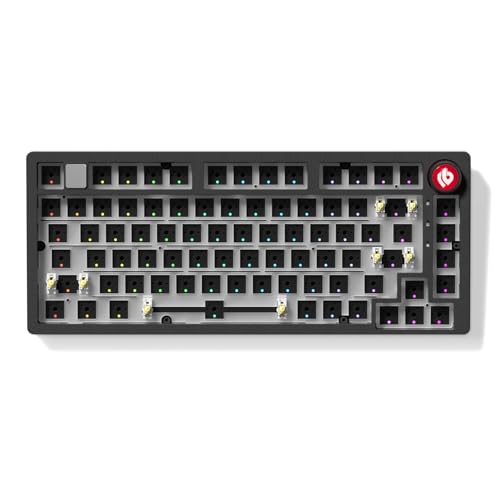
EPOMAKER x Leobog Hi75 75% Wired Mechanical Keyboard – Full Aluminum Case,
75% full-aluminum CNC case with premium build
View Today's Price
Keychron K3 Pro 75% Ultra-Slim Wireless Mechanical Keyboard – QMK/VIA, Hot-Swap,
75% ultra-slim low-profile mechanical keyboard
View Today's PriceHow to Choose the Right Beginner Compact Keyboards
Choosing the right beginner compact keyboard depends on layout preference, switch feel, connectivity needs, lighting, and budget—trade-offs that shift based on your workspace, typing habits, and device ecosystem. A feature that’s perfect for a gamer may frustrate a student or office user, while the ideal size for a small desk could be a dealbreaker for spreadsheet power users. Our recommendation engine evaluates your specific setup across five key dimensions and matches you to the right compact keyboard in under 60 seconds.
About this guide
Beginner Compact Keyboards
Why Picking the Right Compact Keyboard Isn’t Obvious
Choosing your first beginner compact keyboard in 2026 is trickier than it looks. The trade-offs between beginner compact keyboard layouts—TKL (tenkeyless, ~80%), 75%, 65%, and 60%—directly impact your comfort, productivity, and even your desk space. TKL beginner compact keyboards keep the function row and arrows but ditch the numpad, making them a safe bet for most. Move to 75% or 65% beginner compact keyboards, and you lose navigation keys or the function row, which can frustrate those who rely on shortcuts or spreadsheets. Price tiers matter: $50–$70 gets you solid beginner compact keyboards, but stepping up to $100–$150 unlocks hot-swappable sockets, premium keycaps, and wireless options. Most newcomers get tripped up by underestimating how much switch feel (tactile, linear, or clicky) changes the experience, or they buy a 60% beginner compact keyboard for the looks—then miss the missing keys. Brands like Keychron, Royal Kludge, and Redragon dominate beginner compact keyboards at this level, but even within a single brand, features and build quality can vary wildly by model. Don’t assume the most expensive beginner compact keyboard is the best fit for you.
What Actually Sets These Keyboards Apart
The real differentiators among beginner compact keyboards in 2026 aren’t just about size—they’re about switch feel, connectivity, and upgradability. Skip hot-swappable sockets if you never plan to change switches, but for tinkerers, beginner compact keyboards with this feature are a must-have. Tactile brown switches remain the gold standard for beginner compact keyboards, offering a gentle bump without the noise of blue clickies or the slipperiness of reds. Wireless beginner compact keyboards, like those from Keychron and Logitech, use Bluetooth 5.1 for multi-device pairing, while wired-only beginner compact keyboards like Redragon’s K552 guarantee zero input lag. Per-key RGB lighting is fun but can add $20–$40 to beginner compact keyboards; single-color backlighting is usually enough for office use. Don’t get distracted by software features unless you genuinely want to program macros—QMK/VIA support is overkill for most beginner compact keyboard users. Metal frames and durable double-shot keycaps (as seen on HyperX and Corsair beginner compact keyboards) outlast plastic alternatives by years. In short: prioritize switch type, layout, and build quality in beginner compact keyboards over flashy extras unless you know you’ll use them.
How to Balance Features, Budget, and Your Setup
Layout, switch type, and connectivity in beginner compact keyboards all interact with your workspace and habits. If your desk is tiny, a 60% or 65% beginner compact keyboard frees up mouse space—but you’ll need to adapt to function layers. If you type a lot and game occasionally, tactile switches on beginner compact keyboards are safer than linear or clicky. Wireless beginner compact keyboards are a significant upgrade for multi-device setups, but you’ll pay more and occasionally deal with battery life. Your budget sets hard limits: below $70, expect wired-only beginner compact keyboards and basic lighting; $100–$150 brings hot-swap, wireless, and premium keycaps into reach for beginner compact keyboards. The quiz evaluates your preferred beginner compact keyboard layout, switch feel, lighting needs, connectivity, and budget to match you to the right models. Don’t underestimate how much your daily routine shapes the best fit: a student in a dorm may value portability and Bluetooth beginner compact keyboards, while a home office user might want a heavier, wired TKL beginner compact keyboard for stability. Always check for hot-swappable sockets on beginner compact keyboards if you’re even remotely curious about customizing your feel down the line.
Buyer's guide
How to choose
1Core Performance Criteria
- Prioritize tactile brown switches for the most universally satisfying typing feel—linear reds are smoother but less forgiving for beginners.
- Look for N-key rollover and anti-ghosting, especially if you game or type quickly; most Redragon and Royal Kludge models include this.
- Choose a layout that matches your workflow: TKL for versatility, 75% for compactness with arrows, and 65% or 60% for maximum space savings.
- RGB backlighting adds visibility and fun, but single-color backlit models are often cheaper and less distracting for office use.
- Wireless Bluetooth 5.1 is ideal for multi-device setups, but wired USB-C ensures zero latency and no charging interruptions.
- Hot-swappable sockets let you experiment with different switches—this feature is rare under $70 but common in $100–$150 models.
2Build Quality and Durability
- Metal frames, like those on HyperX and Corsair, resist flex and last longer than plastic-bodied boards in the $50–$150 range.
- Double-shot ABS or PBT keycaps won’t fade or shine after months of use; avoid thin laser-etched caps if you want longevity.
- Splash-resistant designs are a real plus for students or busy desks—Redragon and Ajazz offer models with this protection.
- Check stabilizer quality, especially on spacebars and larger keys; rattly stabs are common on budget boards but ruin the feel.
- Detachable USB-C cables are more durable and easier to replace than fixed cables, common in mid- and premium-budget keyboards.
- Brands like Keychron and Logitech have better reputations for long-term reliability and warranty support than lesser-known Amazon brands.
3Value Analysis and Pricing
- Budget keyboards ($50–$70) deliver basic mechanical feel and RGB, but often skip hot-swap and premium keycaps.
- Mid-range ($70–$100) models add hot-swappable sockets, wireless options, and better build materials—Keychron K6 and Royal Kludge RK61 are standouts.
- Premium-budget ($100–$150) boards approach enthusiast quality, with metal frames, tri-mode connectivity, and advanced software.
- Don’t pay extra for features you’ll never use—QMK/VIA programmability is powerful but wasted if you don’t remap keys.
- Watch for bundled extras: some brands include keycap pullers, extra switches, or wrist rests, which add real value for beginners.
- Frequent discounts on Amazon mean last year’s premium boards often drop into the mid-range tier—always check current prices before buying.
4Fit for Your Use Case
- Gamers benefit from linear switches and anti-ghosting, but typists usually prefer tactile feedback—Redragon and HyperX cater to both.
- Students or travelers should favor wireless, lightweight boards like the Keychron K6, which easily fit in backpacks and connect to tablets.
- Office users may want single-color backlighting or no backlight for a professional look—Corsair and Logitech offer understated designs.
- If you switch between Mac and Windows, look for boards with OS toggle switches or extra keycaps—Keychron excels here.
- Heavy spreadsheet users should avoid 60% layouts; missing function and arrow keys can slow productivity unless you master function layers.
- If you plan to tinker, prioritize hot-swappable sockets and open firmware—Royal Kludge and Anne Pro 2 offer the most flexibility.
5Common Mistakes to Avoid
- Don’t buy a 60% keyboard just for aesthetics—missing keys frustrate beginners more than they expect, especially for work tasks.
- Avoid clicky blue switches in shared spaces; the noise can annoy roommates or coworkers and isn’t always as satisfying long-term.
- Don’t assume all RGB is equal—some boards only offer preset effects, while others allow full per-key customization via software.
- Skipping hot-swappable sockets locks you into your switch choice—regret is common if you’ve never tried tactile, linear, or clicky before.
- Buying the cheapest option often means poor stabilizers, thin keycaps, and unreliable firmware—spend at least $70 for a solid experience.
- Neglecting compatibility with your operating system can lead to missing shortcuts or awkward key mapping—always check Mac/Windows support.
6Maintenance and Longevity
- Dust and debris shorten switch lifespan—use a keycap puller and compressed air every few months for easy cleaning.
- Double-shot or dye-sublimated keycaps resist wear far better than pad-printed legends, which fade quickly with heavy use.
- Hot-swappable sockets make replacing worn switches a breeze—no soldering required, so your board can last for years.
- Firmware updates from brands like Keychron and Royal Kludge can fix bugs and add features—register your product for ongoing support.
- Store your keyboard in a case or sleeve if you travel often; exposed switches are vulnerable to damage in backpacks.
- Replaceable USB-C cables mean you won’t have to toss the whole keyboard if the cable frays—a small feature that extends lifespan.
FAQ
Frequently asked questions
Is it worth paying extra for hot-swappable sockets on a beginner compact keyboard?
Absolutely—if you’re even slightly curious about trying different switch types, hot-swappable sockets are a significant upgrade. They let you swap out switches without soldering, so you can experiment with tactile, linear, or clicky switches as your preferences evolve. Most boards with this feature start around $90, like the Royal Kludge RK61 and Keychron K6. If you’re sure you’ll stick with your chosen switch, you can save $20–$30 by skipping hot-swap, but most beginners appreciate the flexibility.
How does Keychron compare to Royal Kludge for beginner compact keyboards?
Keychron stands out for its Mac/Windows compatibility, premium keycaps, and consistent wireless performance—making it a favorite for both students and office users. Royal Kludge offers more aggressive pricing and hot-swappable sockets even on budget models, but sometimes cuts corners on stabilizers and software. Both brands are reliable, but Keychron’s build quality and customer support are generally superior, while Royal Kludge gives you more features per dollar if you’re willing to tweak settings.
What size/layout should I choose if I want maximum desk space but still need arrow keys?
A 65% layout is your sweet spot. It ditches the function row and condenses navigation keys, but crucially keeps dedicated arrow keys—unlike 60% boards, which require function combos for arrows. This layout is ideal for small desks or gaming setups where mouse space is at a premium, but you still need to navigate documents or code efficiently. Keyboards like the Keychron K6 and Royal Kludge RK68 are popular 65% choices.
Are wireless compact keyboards as reliable as wired ones for gaming and fast typing?
Modern wireless compact keyboards—especially those with Bluetooth 5.1 or 2.4GHz dongles—are nearly indistinguishable from wired in terms of input lag for most users. Keychron and Logitech both offer wireless models that perform well for gaming and fast typing. However, if you play competitive esports or want zero risk of battery outages, a wired USB-C model like the Redragon K552 is still the safest choice.
Should I get RGB backlighting or is single-color enough for most beginners?
RGB backlighting is fun and makes night typing easier, but it’s not essential for everyone. If you like customizing your setup or work in dim rooms, per-key RGB is worth the extra $20–$40. For office or classroom use, single-color backlighting is less distracting and often cheaper. Some brands, like Corsair and Logitech, offer understated white backlighting that balances visibility and professionalism.
What’s the difference between tactile, linear, and clicky switches—and which is best for a beginner?
Tactile (brown) switches provide a gentle bump at the actuation point, making them the most beginner-friendly and versatile for typing and gaming. Linear (red) switches are smooth and quiet, preferred by gamers who want fast key presses. Clicky (blue) switches give an audible click and a pronounced bump, which some typists love but many find too loud. Most beginners should start with tactile switches for the best all-around experience.
Do all beginner compact keyboards work with both Mac and Windows?
Not all do, but many popular models—especially from Keychron and Royal Kludge—include Mac/Windows compatibility switches or extra keycaps for both layouts. Always check the product details: some budget boards default to Windows layouts and require manual remapping for Mac. If you regularly switch between OSes, prioritize a model that explicitly supports both to avoid annoying shortcut mismatches.
Related Guides
Amp Simulator Pedals
Amp style, tech type, stereo needs, and budget—get matched to the perfect amp sim pedal for your rig and workflow.
Amp Simulator Pedals & Preamps
Matched to your tonal goals, gig setup, budget, and experience—find the amp sim pedal or preamp that actually fits your needs.
Electronic Drum Kits
Matched to your music style, pad feel, space, and training needs—find the right e-drum kit for your unique practice setup.
Beginner Electric Guitars
Matched to your hand size, musical style, pickup preference, and budget—get your ideal beginner electric guitar in seconds.
Digital Keyboards
Skill level, key action, space, and musical goals—get matched to the right digital keyboard or piano for your real needs.